
Web App Guide
DrunkenScorekeeper for the web — keep score together, on any device
For the web app at scorekeeper.elevenseventeen.cloud. Using the iPhone app from the App Store? See the iOS app guide.
DrunkenScorekeeper for the web — keep score together, on any device
For the web app at scorekeeper.elevenseventeen.cloud. Using the iPhone app from the App Store? See the iOS app guide.
DrunkenScorekeeper for the web is a scorekeeper you share with the people you play with. Everyone in your group sees the same games, live: when one person enters a score, it shows up on everyone else’s phone a moment later. It runs in the web browser on iPhone, iPad, Android, Mac, Windows and Linux — there is nothing to download from an app store.
Go to scorekeeper.elevenseventeen.cloud. To make it feel like an app, add it to your home screen:
Note: an app on the home screen keeps its own sign-in, separate from the browser, so you sign in once more the first time you open it from there.
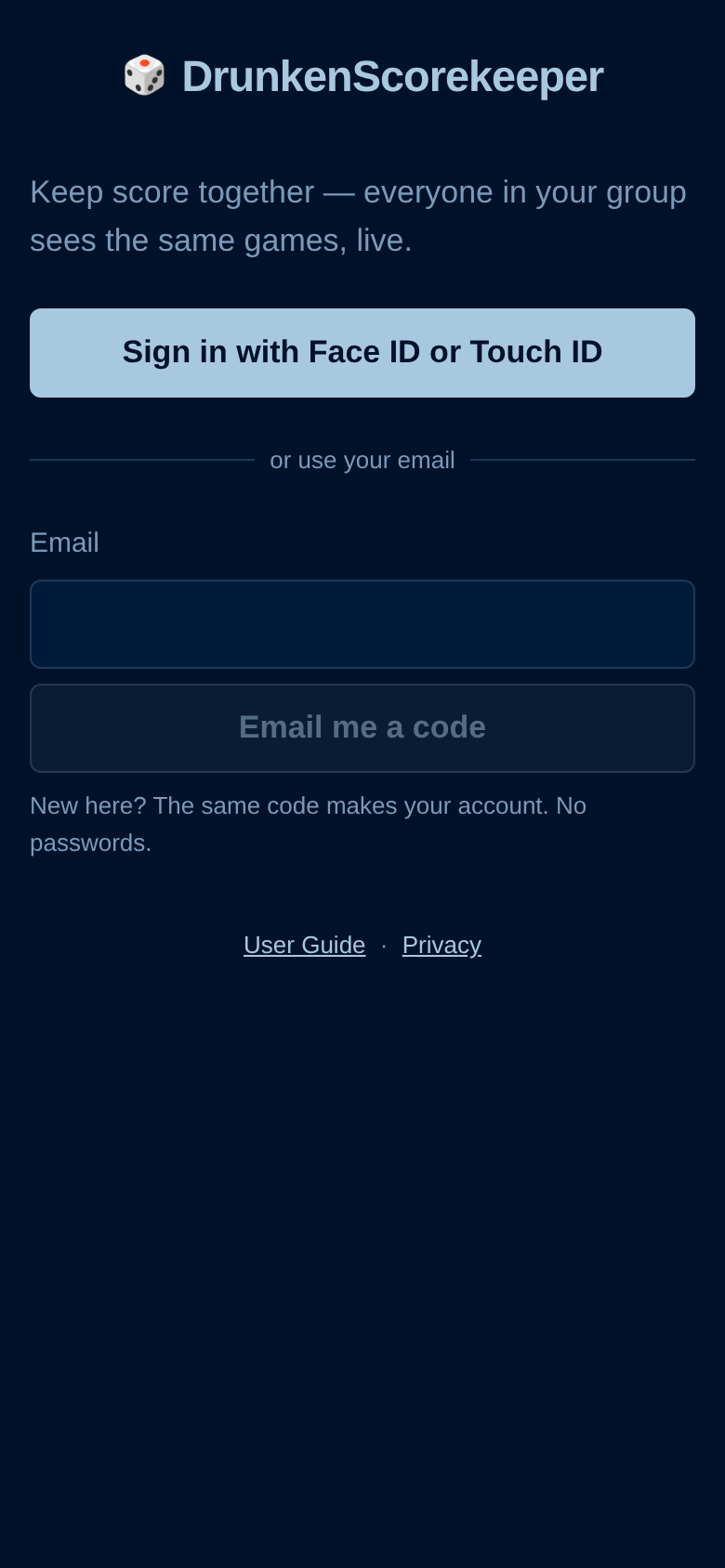
There are no passwords. The first time, type your email and tap Email me a code; type the 6-digit code from the email (it works for 15 minutes). New here? The same code creates your account — you’ll be asked what to call you, and that name is shown on games you score.
Right after signing in, the app offers to set up a passkey. After that, signing in is one tap with whatever your device uses to unlock: Face ID or Touch ID on iPhone and iPad, fingerprint or face unlock on Android, Touch ID on a Mac, Windows Hello on Windows. You can always fall back to an emailed code — for example on a new phone.
Lost signal at the cabin? Keep scoring. Changes wait on your phone (the bar at the top says Offline · 3 to sync) and are sent as soon as you’re back online. Nothing you enter is lost.
A group is the people you play with — your family, Thursday night Spades, a tournament. Each group has its own games, players, events and stats, and only its members can see them. You can be in as many groups as you like.
The group’s name is at the top of every screen. Tap it to switch to another group or start a new one. Anyone with an account can start a group; whoever starts it is its owner.
| Role | What they can do |
|---|---|
| Owner | Everything an admin can. There is one owner per group, and they can’t be removed. |
| Admin | Score; invite people, change roles and remove people; delete games, profiles and events; clear history; wipe or restore a backup. |
| Member | Start and score games, manage profiles and events, share guest links. |
| Viewer | Watch live games and see history and stats, but not change anything. |
If someone tries something their role doesn’t allow, the change is undone and a short message says why.
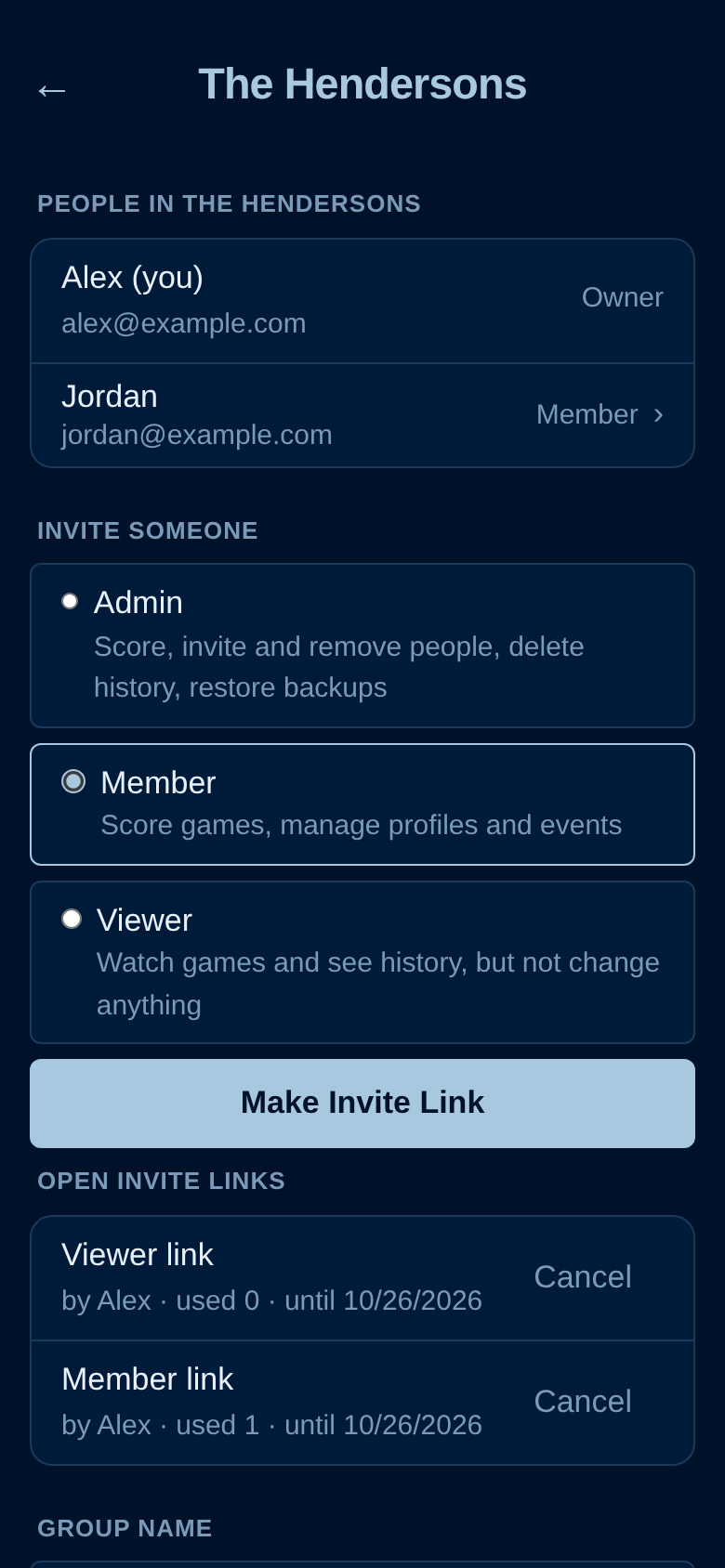
Admins and the owner: tap the group name → People & invites for this group. Choose the role the new person will have, tap Make Invite Link, then Share Link to send it by text or email. Anyone who opens the link in the next 14 days can sign in (or make an account) and join. Open links are listed underneath, with how many times each has been used; tap Cancel to stop one working.
On the same page, tap a person to make them an admin, member or viewer, or to remove them from the group. Games they scored stay. Anyone except the owner can leave a group with Leave This Group at the bottom.

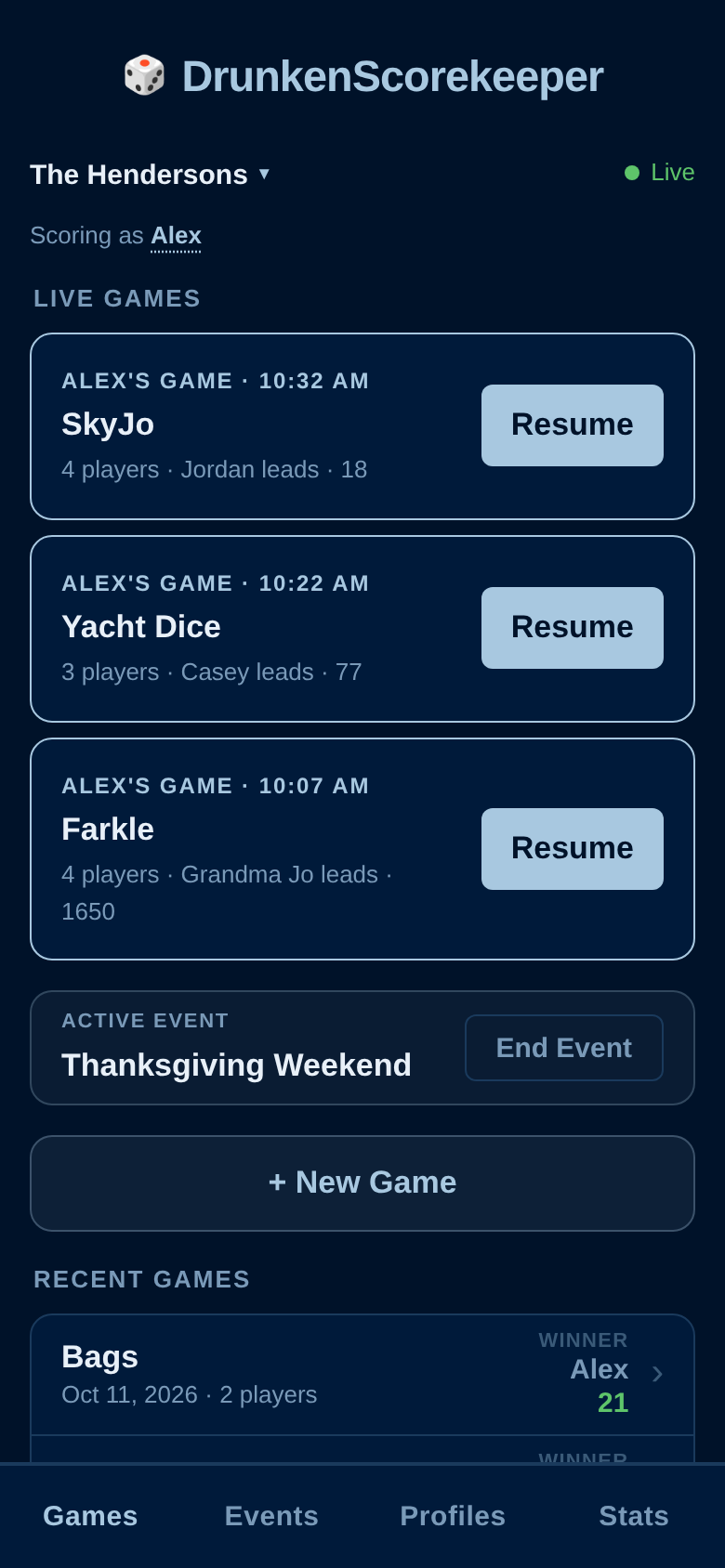
The app has four tabs at the bottom: Games, Events, Profiles and Stats. Above them, on every screen:
Several games can run at once — one per table. Each live game shows who started it, when, how many are playing and who’s leading. Tap Resume (your games) or Open (someone else’s) to score it. Two people can score the same game from two phones at the same time.
If an event is running, it’s shown here with an End Event button, and new games join it automatically. Below + New Game are the group’s finished games, newest first, with the winner of each. Tap one to see its details.
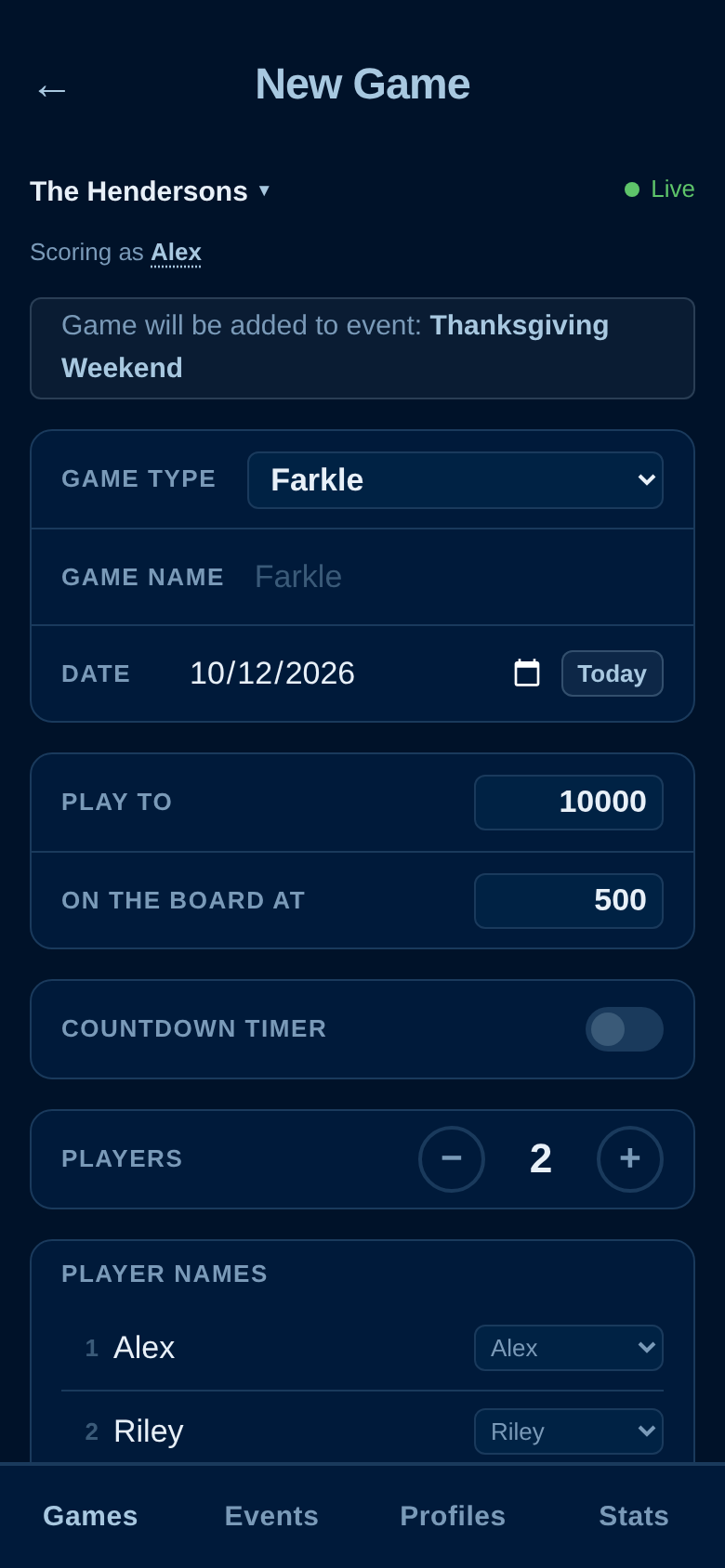
Tap + New Game. First pick the Game Type — it sets up the right scorecard and rules:
| Game type | How it’s scored |
|---|---|
| Standard | Any game: add or subtract points per player (or per team). See Scoring a Regular Game. |
| Texas 42 | Teams, scored in marks. |
| Yacht Dice | A dice scorecard per player (US rules). See Dice Games. |
| Farkle | Turn by turn, to 10,000, 500 to get on the board. |
| SnakeEyes | Two-dice turn game to 100. |
| SkyJo | Round by round, low score wins, ends at 100. |
| Mexican Train | Thirteen rounds (double 12 down to blanks), low score wins. |
| Rummy | Round by round, to 500. |
| Pitch (10-point) | Hand by hand with bidder and bid, to 31. |
| Spades | Partnerships: bids, tricks, bags and Nil, to 500. |
| Bags (cornhole) | Two teams, cancellation scoring, to 21. |
The name fills in for you from the game type. For Standard games, start typing and names you’ve played before are suggested, so the same game keeps one spelling (and its stats stay together). The date defaults to today.
Which options appear depends on the game type:
Set the number of players with − and + (up to 16) and type their names; last game’s players are filled in to start. If your group has profiles, pick each player’s profile from the menu next to their name so the game counts toward their stats. For team games, add teams and players to each team. Tap Start Game.
Standard and Texas 42 games show a table with each player (or team), their score and a Change box. Type the points for that player and press Enter or tap away — the total updates on every phone. Tap the +/− button to switch between adding and subtracting.
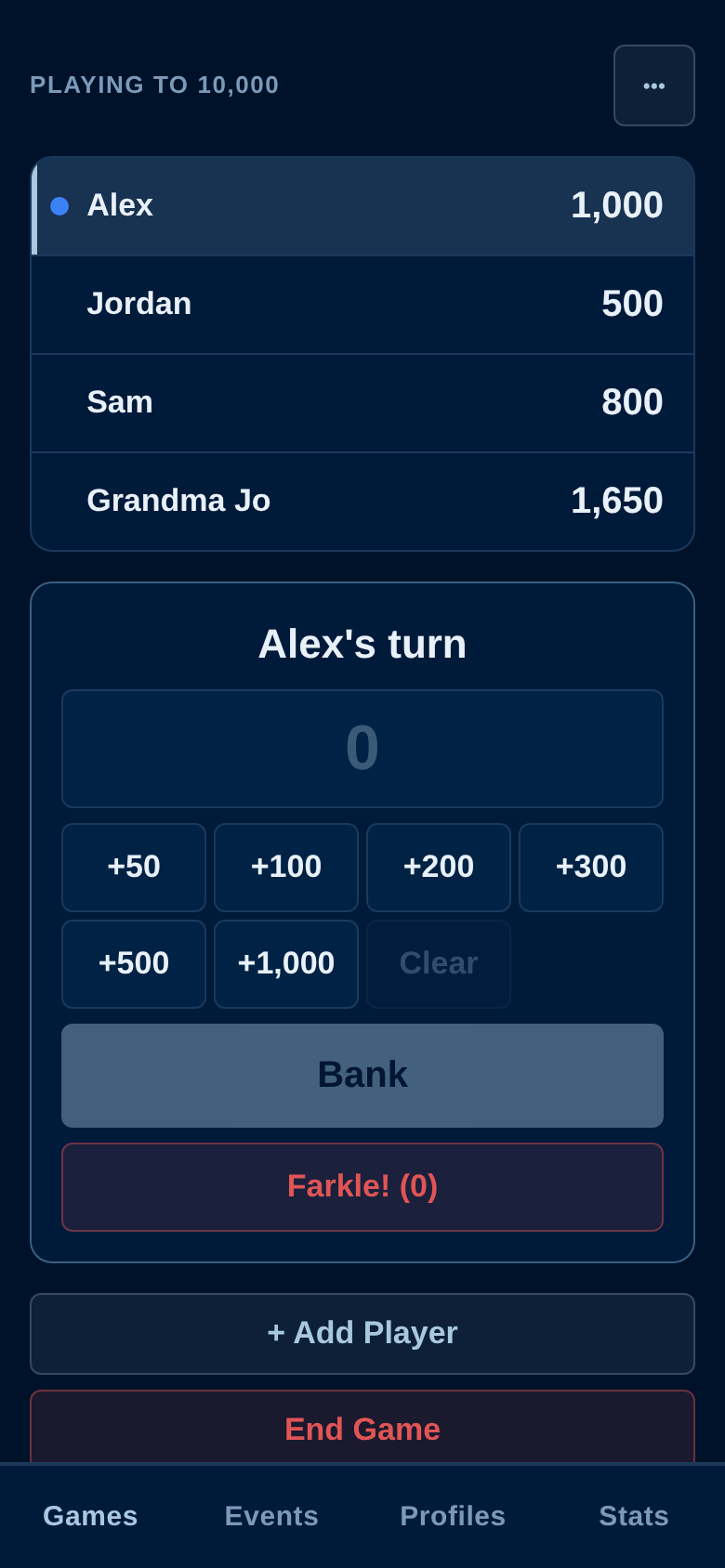
These go turn by turn. The card shows whose turn it is. Add up the turn’s points with the quick buttons (+50, +100 … +1,000) or type the total, then tap Bank. Play moves to the next person by itself.
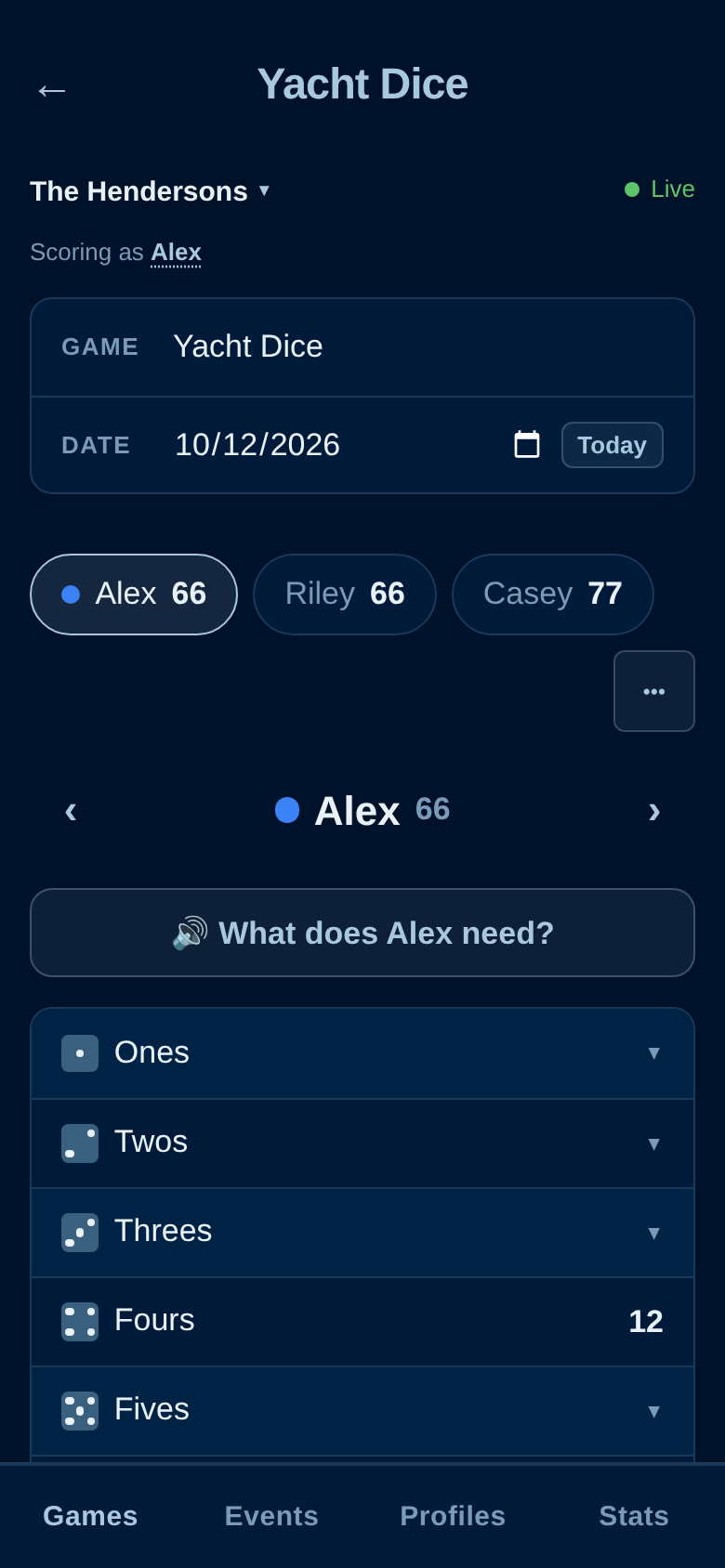
Each player has a full scorecard (US rules: upper section with the 35-point bonus, three and four of a kind, straights, full house, chance, Yahtzee and Yahtzee bonuses). Swipe left and right, or use ‹ ›, to move between players; the chips at the top show everyone’s total. Tap a box and pick the score — after filling an empty box, the card moves on to the next player.
🔊 What does name need? reads out — and shows — what that player still needs, in dice rather than points: for example, “To get the bonus, Riley needs three Sixes and two Fours.”
When every box is filled, the app asks whether to end the game; it never ends one on its own.
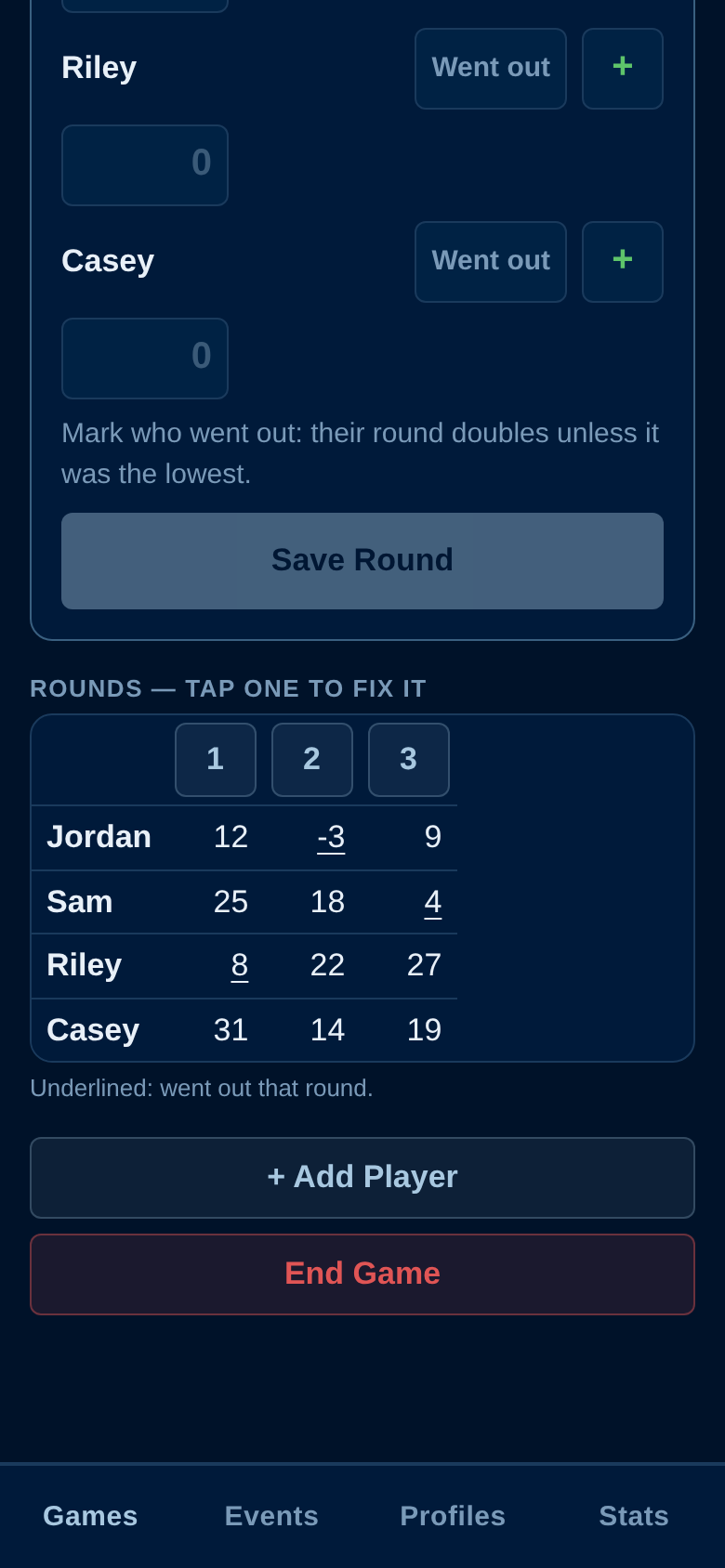
SkyJo, Mexican Train, Rummy, Pitch, Spades, Bags — and any Standard game with Score by Round on — are entered a round at a time. Fill in everyone’s result and tap Save Round. The grid below shows every round; tap a round number to fix it or delete it.
If the game has a timer, tap ⏱ Timer to start a full-screen countdown for the current turn. Tap Done Early to stop it, or Dismiss when time is up.
Tap End Game to finish. The game moves to history for everyone, and players with profiles get credit for the game and any win (ties share the win). If nobody has reached the target yet, or the final round isn’t finished, you’re asked to confirm first.
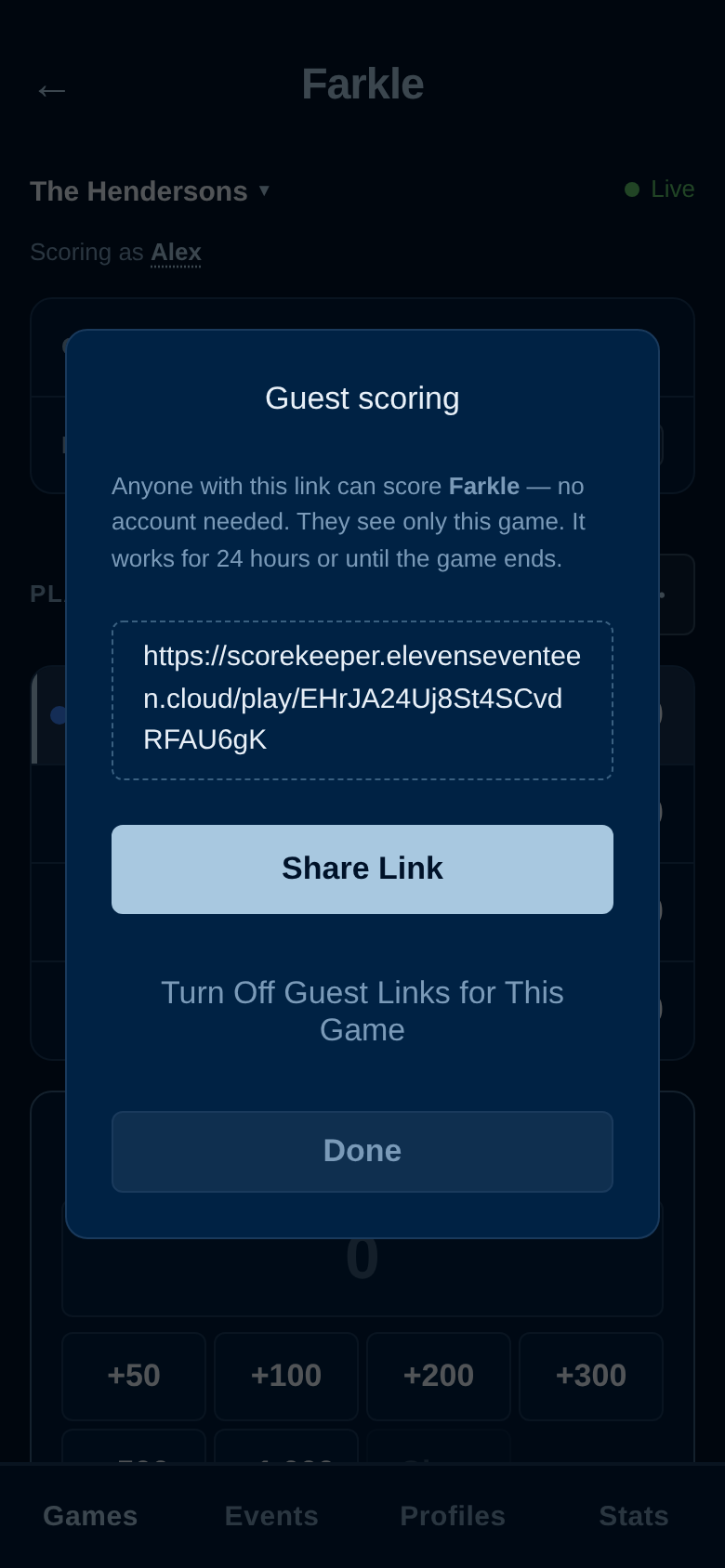
Playing with someone who isn’t in your group — a neighbour, a cousin visiting for the weekend? Give them a link to score just that game, without making an account.
Guests can’t see your group’s other games, history, profiles or stats, can’t start new games, and can’t abandon a game. A link works for 24 hours, stops as soon as the game ends, and can be switched off any time with Turn Off Guest Links for This Game. Members, admins and the owner can make guest links; viewers can’t.
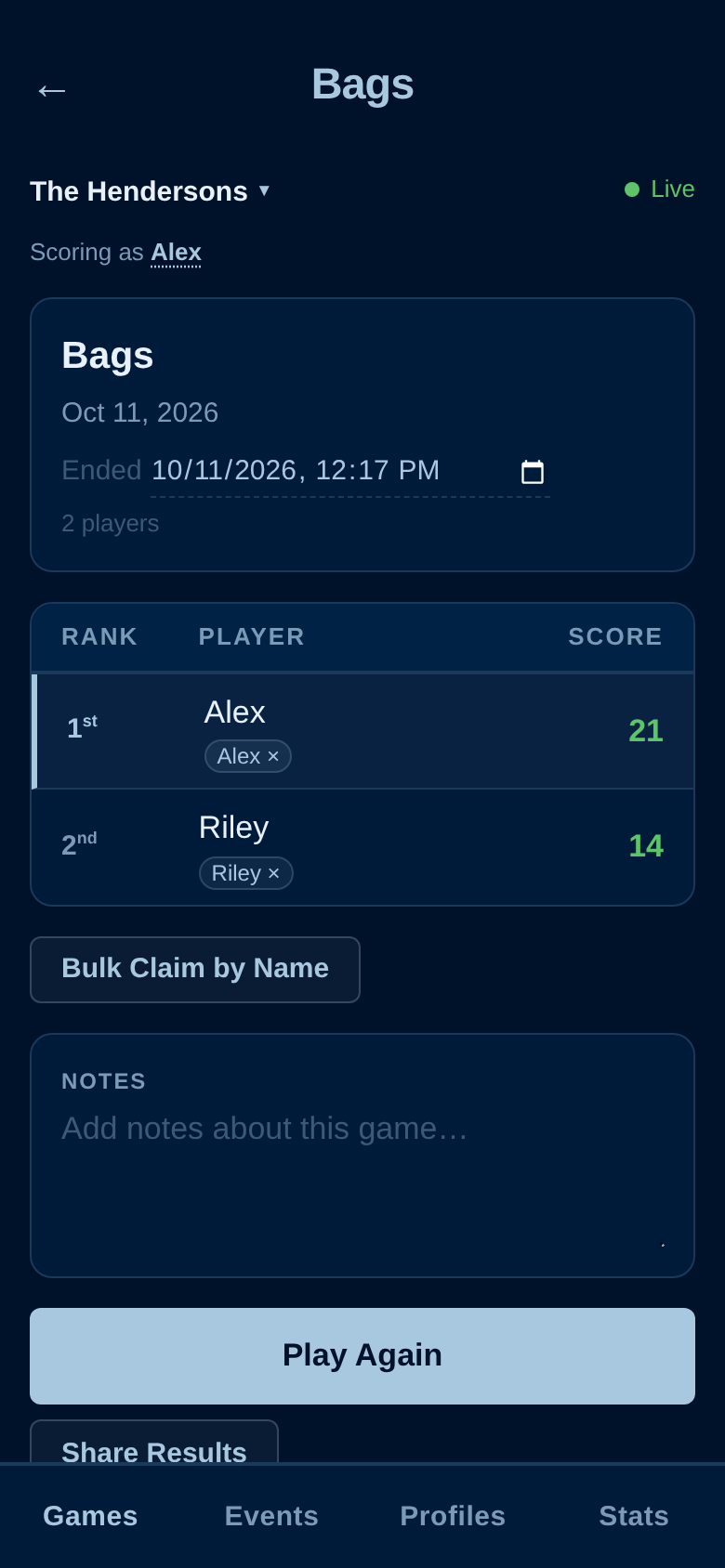
Tap a finished game on the Games tab to see it:
An event groups games together — a game night, a holiday weekend, a tournament — with combined standings.
.dskexport file to share with another group or the iPhone app, and Import .dskexport to bring games in (you can link the imported players to your profiles as you go).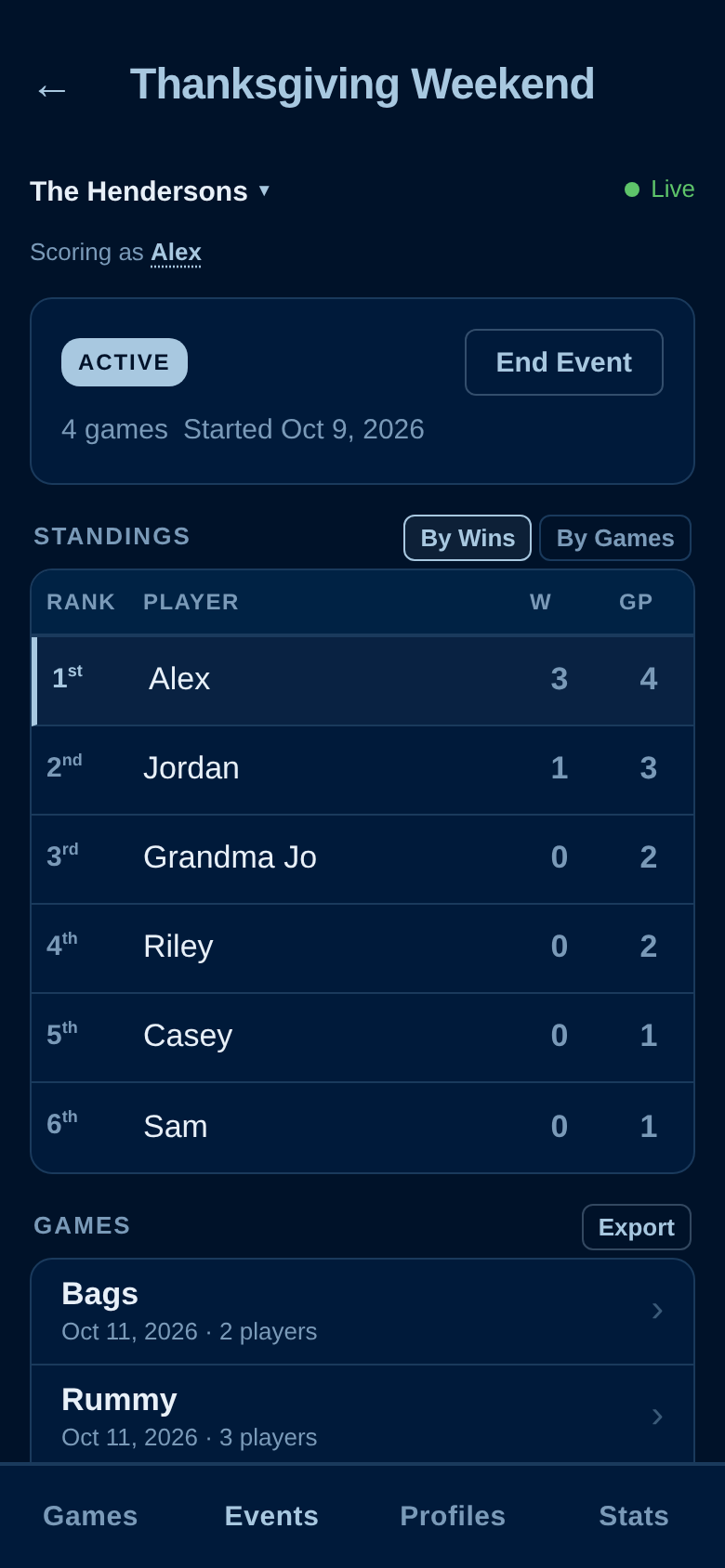
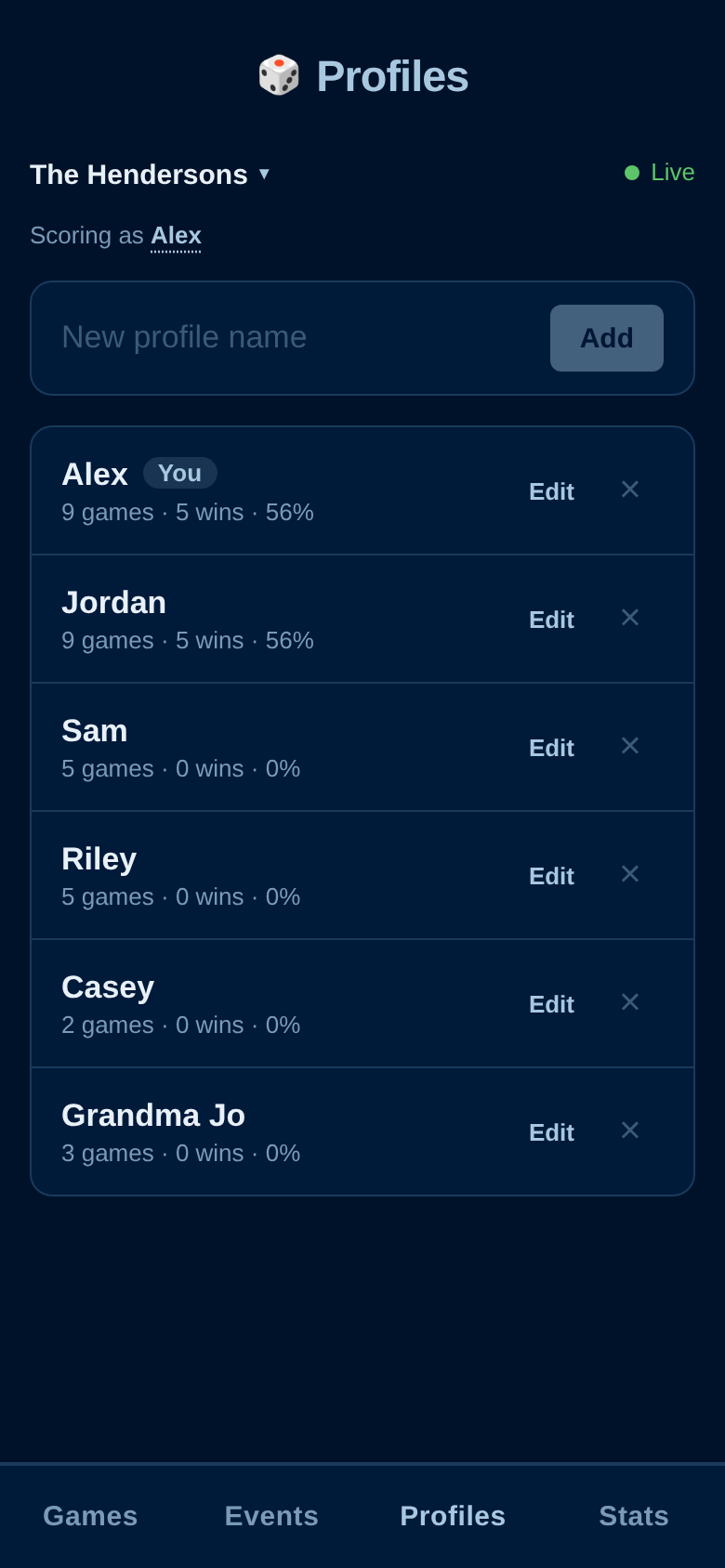
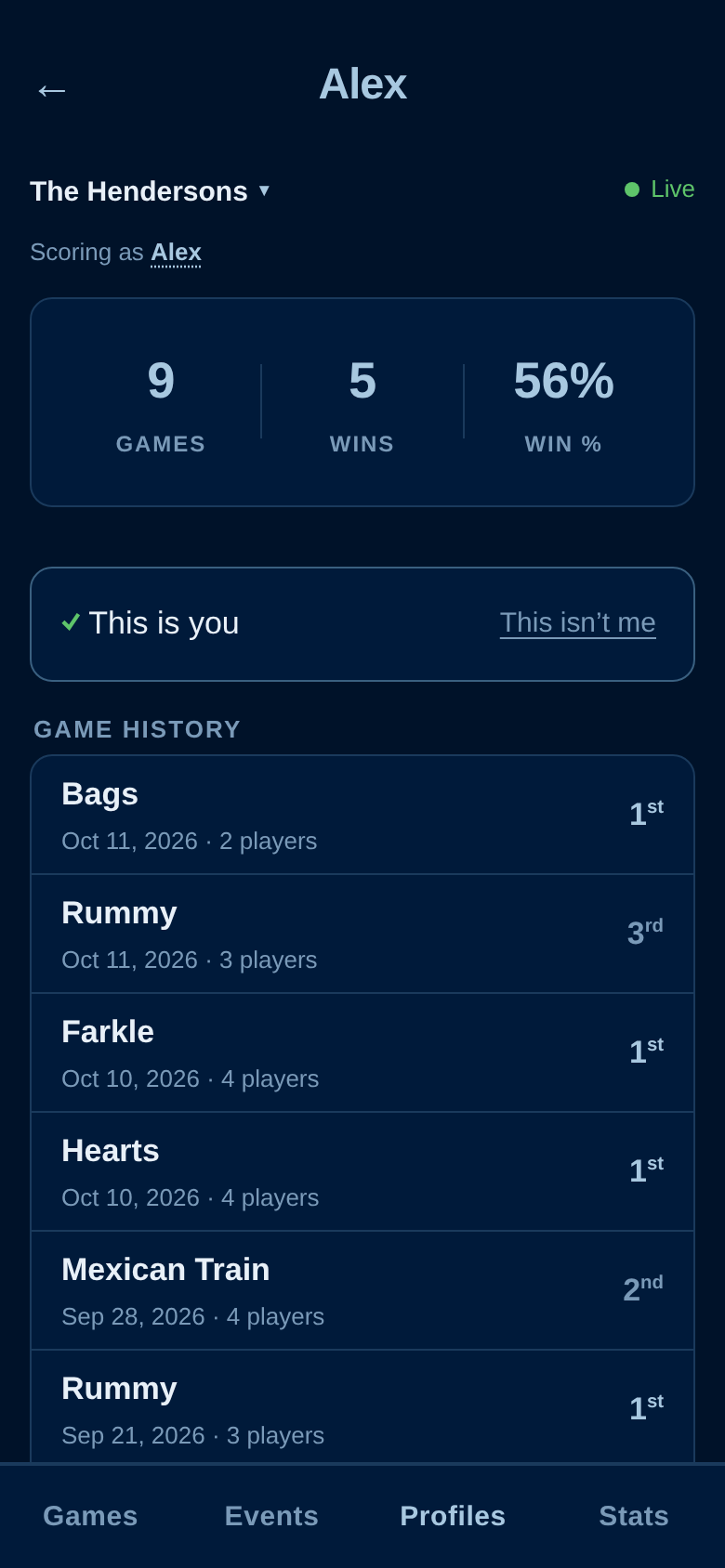
A profile is a regular player in your group. Games where a player is linked to a profile count toward that profile’s lifetime games, wins and win %. Profiles don’t need an account — Grandma can have one without ever opening the app.
Open your own profile and tap This Is Me to link it to your account. It gets a You tag in the list, and your results there count in Your Stats across all your groups. Each person can be linked to one profile per group, and each profile to one person. Tap This isn’t me to undo it; admins can Unlink a wrong one.
Pick one or more profiles and a period — Year, Quarter, Month or a Custom range — to see wins and games played side by side. A Yacht Dice card shows each player’s games, average, high score, how often they got the upper bonus, and their Yahtzees.
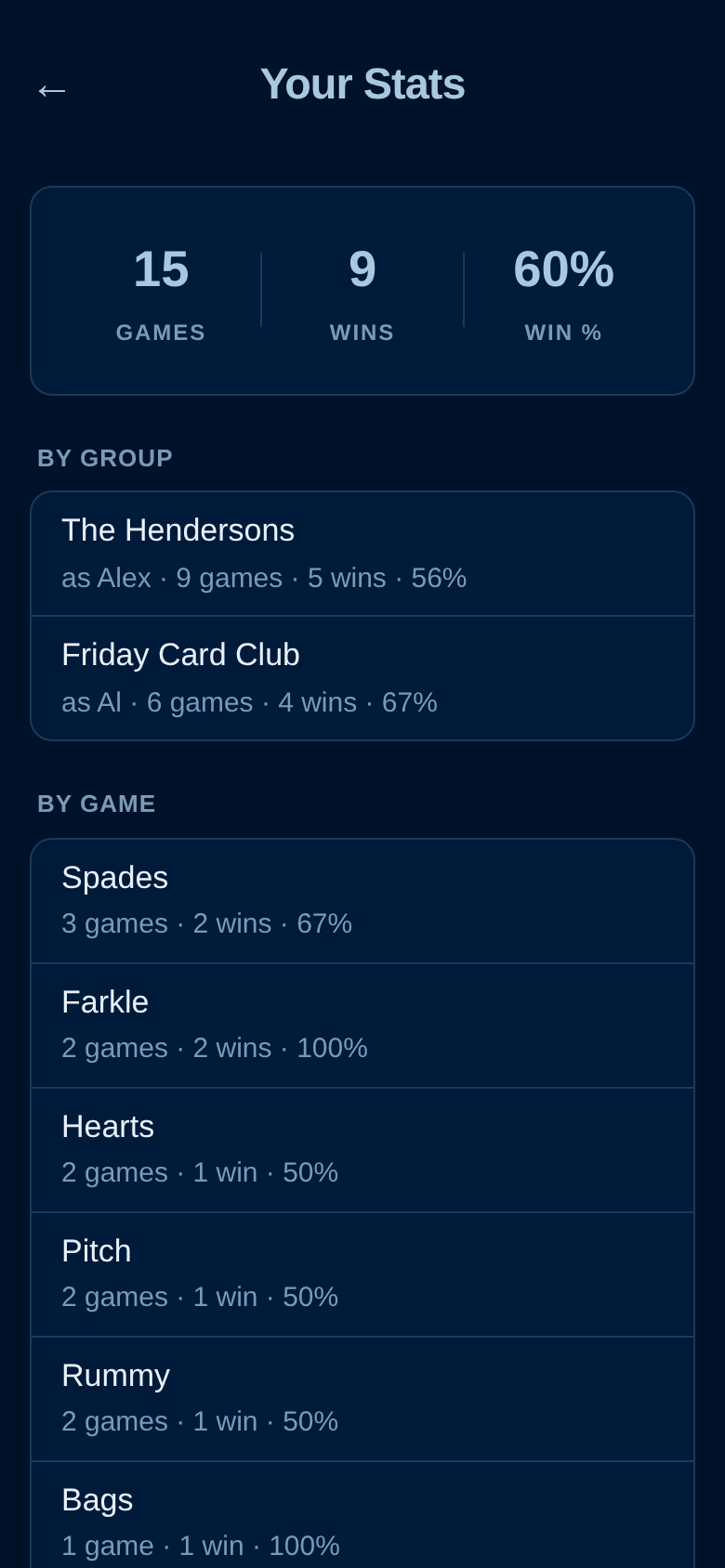
Tap Your stats across all groups on the Stats tab (or Your Stats Across All Groups in your account) to see yourself everywhere you’ve tapped This Is Me: totals, each group, each game (“Farkle” and “farkle” count as one), each year, and your last ten games. Only you can see this page; each group still sees only its own games.
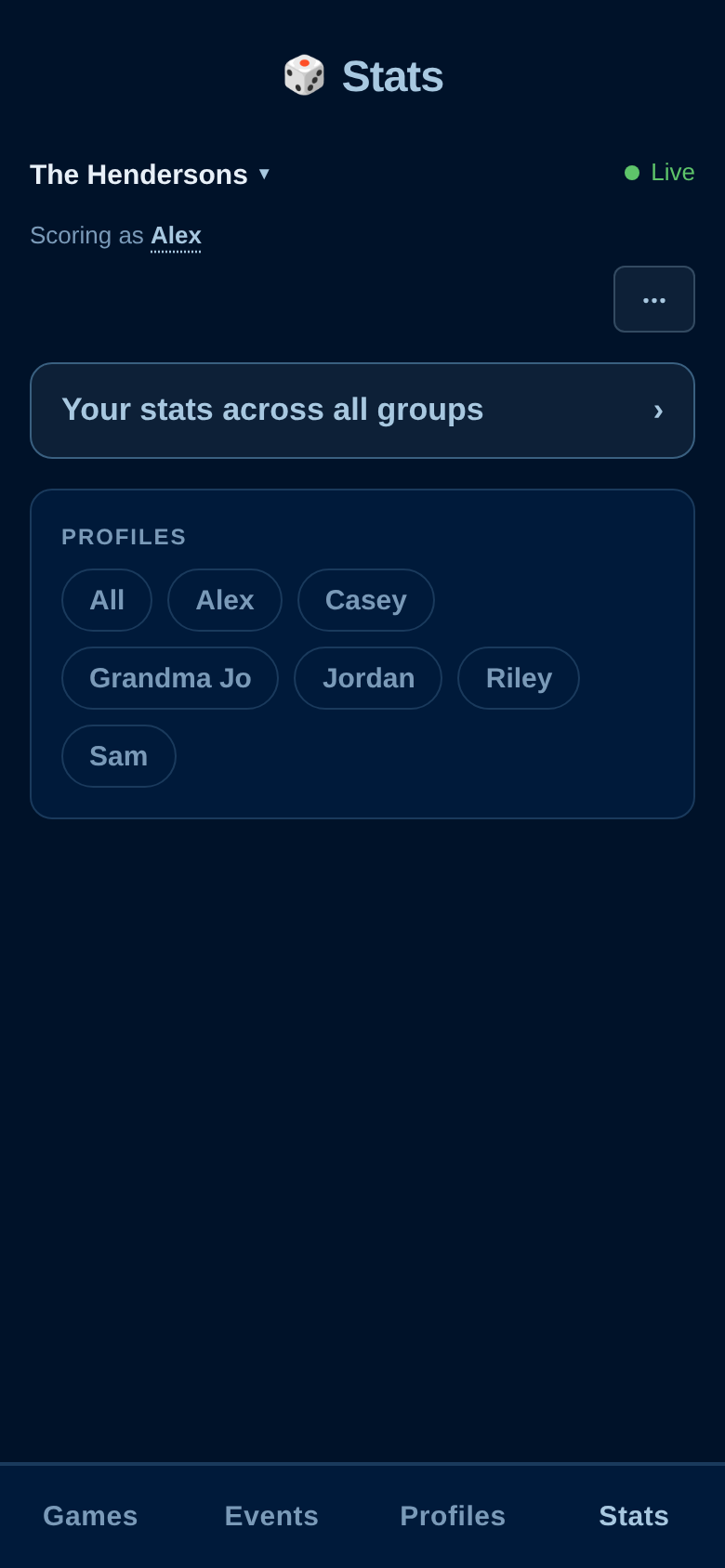
On the Stats tab, tap ⋯ → Backup & Restore.
.dskbackup file. Anyone in the group can make one..dskbackup into an empty group. It accepts backups from this app and from the DrunkenScorekeeper iPhone app — the easy way to bring your iPhone history across.On a computer you can also drag a .dskexport or .dskbackup file onto the app.
Tap Scoring as your name at the top of the screen:
It updates itself. When a new version is out, the app reloads the next time you come back to it — or shows New version available — tap to update if you’re in the middle of typing.
On iPhone and iPad the app follows Settings → Display & Brightness → Text Size, just like built-in apps. You can still pinch to zoom.
The iPhone app keeps everything on your phone with no account. The web app is for playing together: shared groups, live scoring from several phones, guest links and stats across groups, on any device. You can move your iPhone history into the web app with a backup (see Backup, Restore & Import).
Only the people in your group. Guests see the one game they were invited to score. See the web app privacy policy for what’s stored and why.